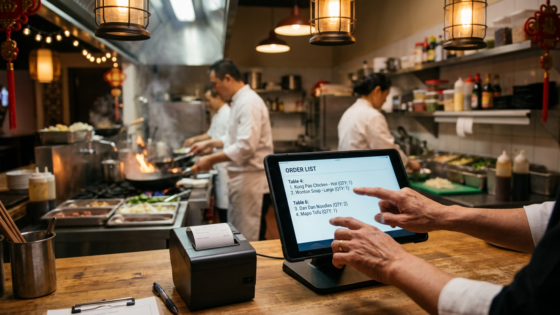
You’ve set up Tunvo’s AI voice agent on your MenuSifu POS. Most of the time, it works exactly as intended — calls come in, the AI takes the order, and the ticket appears in your kitchen. But occasionally something doesn’t line up: a modifier doesn’t show up correctly, an item the AI thought was available had been 86’d, or an order simply doesn’t appear. This guide covers the most common issues restaurant operators encounter when running voice AI on MenuSifu, with step-by-step fixes and the logic behind why each problem occurs.
Key Takeaways
- Most voice AI issues on MenuSifu trace back to three root causes: menu sync delays, modifier mapping mismatches, and network interruptions.
- Keeping your MenuSifu menu items accurately named and your availability statuses updated is the single most effective preventive measure.
- Tunvo’s AI handles order complexity well — but it performs best when the underlying MenuSifu data it reads is clean and current.
Understanding How Tunvo Reads MenuSifu Data
Before jumping into specific issues, it helps to understand the basic architecture. Tunvo’s AI reads your menu structure, item availability, modifier groups, and pricing from your MenuSifu POS in real time. When a customer calls and orders “General Tso’s chicken with extra spicy and no broccoli,” the AI needs to:
- Identify the correct item from your MenuSifu menu
- Match the customer’s spoken request to the correct modifier options
- Confirm item availability based on current stock status
- Submit the order to MenuSifu as a structured transaction
Any gap between what the AI expects to find and what’s actually in your MenuSifu configuration can surface as an issue. Real-time synchronization between AI voice systems and POS platforms is essential — the moment an item is out of stock or a price changes, the AI needs to reflect that immediately.
Issue 1: Orders Not Appearing in MenuSifu After a Call
What You’ll See
The AI completes the call normally, the customer receives an order confirmation, but no ticket appears in MenuSifu or on the kitchen printer.
Most Common Causes
The most frequent reason is a network interruption between the moment the AI finishes processing the order and the moment the submission reaches MenuSifu. This can happen due to a brief WiFi dropout, a router restart, or a period of network congestion during peak hours. A second possible cause is a session timeout: if the Tunvo-MenuSifu connection was idle for an extended period (for example, during a slow afternoon), the authentication token may need to be refreshed.
How to Fix It
First, check your internet connectivity — open your MenuSifu backend on a browser or tablet and confirm the system is responding normally. If MenuSifu itself is loading slowly, the issue is network-level. A router restart often resolves intermittent connectivity issues. Second, log into your Tunvo dashboard and check the order history for that time window. Tunvo logs every call and its outcome. If the order shows as “submitted” in Tunvo’s log but doesn’t appear in MenuSifu, that confirms a sync failure rather than a Tunvo processing error — contact support with the call timestamp. If the order shows as “failed to submit,” you’ll see an error code that can guide the next step.
Prevention
Use a wired Ethernet connection for your MenuSifu POS terminal where possible. For restaurants relying entirely on WiFi, a dedicated network for POS devices (separate from the guest WiFi network) significantly reduces interference and dropout events. Many commercial POS hardware setups, including Star Micronics printers, are designed for wired LAN connections that provide more stable connectivity than wireless configurations.
Issue 2: Wrong or Missing Modifiers on Orders
What You’ll See
Orders arrive in MenuSifu but modifier details are incomplete — for example, “fried rice” appears without the “no egg” specification the customer requested, or the spice level modifier is missing.
Why This Happens
Tunvo’s AI maps spoken modifier requests to the modifier options configured in your MenuSifu menu. If the modifier in MenuSifu is named differently from how customers naturally speak it, the mapping can fail silently. For example, if a customer says “less spicy” but your MenuSifu modifier is labeled “Spice Level: Mild,” the AI may not make the connection confidently and will omit the modifier rather than guess incorrectly.
This is one of the most important things we found when designing the MenuSifu integration: the way modifiers are labeled in a POS matters a lot for how an AI interprets spoken requests. Generic labels like “Option 1” or abbreviated names like “XS (no sub)” create ambiguity that the AI cannot resolve on its own.
How to Fix It
In your MenuSifu menu management panel, review modifier group names for your most frequently ordered items. Modifier names should be written the way a customer would say them aloud. “Extra spicy,” “mild,” “no MSG,” and “brown rice instead of white” are all examples of natural-language modifier labels that the AI can confidently match. After updating modifier names, allow up to 15 minutes for the Tunvo system to sync the updated menu data.
When to Contact Support
If modifiers are consistently missing for a specific item even after renaming, contact Tunvo support with the item name and modifier group in question. Some complex nested modifier structures (particularly multi-step combos common in Chinese menus) may require a manual mapping configuration on the Tunvo side.
Issue 3: AI Says an Item Is Available When It’s Been 86’d
What You’ll See
A customer orders an item that’s sold out, the AI confirms it, and the order appears in MenuSifu — causing a difficult conversation in the kitchen or with the customer.
Why This Happens
Tunvo reads item availability from MenuSifu’s stock status in real time. However, if a staff member removes an item from your in-restaurant workflow without updating its status in MenuSifu (for example, physically running out of a protein but not marking it as unavailable in the system), Tunvo will continue to offer it because the MenuSifu record still shows it as available.
How to Fix It
In MenuSifu, marking an item as sold out takes a single tap — the system updates availability across all ordering channels instantly, including the Tunvo integration. Building the habit of marking items sold out in MenuSifu the moment you run out is the most effective safeguard. MenuSifu’s menu management dashboard allows staff to mark items sold out from any terminal, and the update propagates immediately. For high-turnover items like daily specials or limited-quantity dishes, some operators assign one team member specifically to monitor and update availability during each shift.
Issue 4: AI Misidentifies an Item Because of Naming Ambiguity
What You’ll See
A customer asks for “sesame chicken” and the AI orders “sesame beef” — or a customer asks for a lunch combo and the AI selects the dinner combo pricing instead.
Why This Happens
Natural-language AI works by identifying the most probable match between what was said and the items in the menu. When two items have very similar names or when the same item appears under multiple menus (lunch vs. dinner, dine-in vs. takeout), the AI selects based on context clues in the conversation — like what time of day it is or whether the customer specified pickup or delivery. If the menu is structured ambiguously, the AI may choose the wrong option.
How to Fix It
Review your MenuSifu menu for items with near-identical names or items that appear in both lunch and dinner menus at different price points. Disambiguating these — for example, renaming “Sesame Chicken (Lunch)” and “Sesame Chicken (Dinner)” rather than having both labeled “Sesame Chicken” — helps the AI choose correctly. You can also flag specific items to the Tunvo team for custom disambiguation rules if the standard menu naming still causes recurring errors.
Issue 5: The AI Understands the Order But Confirmation Language Confuses the Customer
What You’ll See
Customers report that the AI “said something weird” when confirming the order, or that the order didn’t make sense when read back to them — even though the correct items appear in MenuSifu.
Why This Happens
This typically relates to how MenuSifu item names are written — if your menu uses internal shorthand, abbreviations, or codes that made sense for counter staff but not for customers (“C12 – Mixed Veg Plate”), the AI will read those labels back verbatim during order confirmation. This doesn’t affect order accuracy, but it creates a confusing experience for callers.
How to Fix It
Update your MenuSifu item names to use the customer-facing names you’d use when describing the dish verbally. “Mixed Vegetables with White Rice (Combo C12)” is clearer for a customer confirmation read-back than “C12 Mixed Veg.” This is also a good practice for your kiosk or online ordering channels, where MenuSifu displays these same names directly to customers. Refer to our product team for guidance on menu audit best practices before going live.
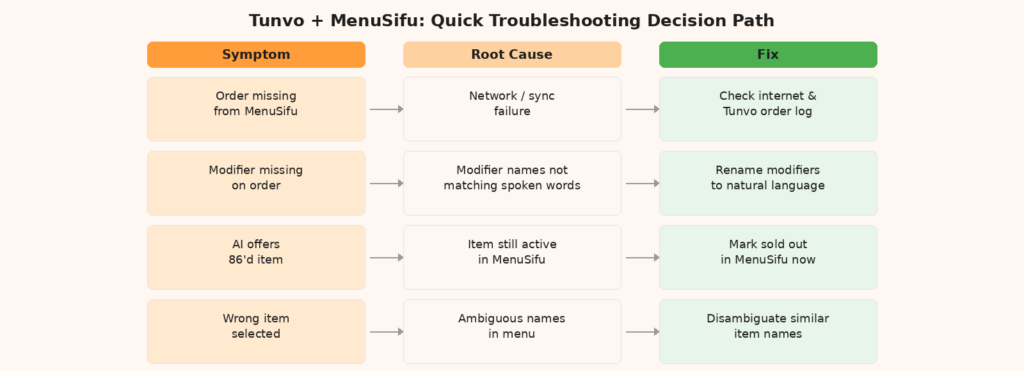
Quick-Reference Troubleshooting Table
| Symptom | Most Likely Cause | First Fix to Try |
|---|---|---|
| Order confirmed by AI but not in MenuSifu | Network interruption / sync failure | Check internet, restart router, review Tunvo order log |
| Modifiers missing from MenuSifu order | Modifier names don’t match natural language | Rename modifiers in MenuSifu to match how customers speak |
| AI offers 86’d item | Item not marked unavailable in MenuSifu | Mark item sold out in MenuSifu immediately when stock runs out |
| Wrong item ordered (e.g., beef vs. chicken) | Ambiguous item names in MenuSifu | Disambiguate similar item names; contact support for mapping rules |
| Customer confused by AI read-back | Internal item codes/shorthand in menu names | Rename items in MenuSifu to full customer-facing descriptions |
| AI can’t find a newly added menu item | Menu sync delay after recent updates | Wait 15 min after MenuSifu update; trigger manual sync in Tunvo dashboard |
Preventing Issues Before They Happen: A Pre-Launch Checklist
If you’re setting up Tunvo for the first time or after a major MenuSifu menu update, running through these steps before going live will prevent the majority of issues described above. Industry guidance on AI voice system launches consistently highlights that thorough pre-launch testing — covering every item on the menu, not just popular ones — is the single most effective way to avoid operational surprises on the first live day.
- Confirm your MenuSifu internet connection is stable. Test by placing a manual order through MenuSifu to confirm items appear in the kitchen.
- Review all modifier group names for your top 20 items and ensure they match natural spoken language.
- Confirm that any items currently unavailable are marked as sold out in MenuSifu before activating Tunvo.
- Remove or rename any items using internal shorthand or codes in their primary names.
- Place 3–5 test calls to Tunvo before going live. Use a mix of simple orders and complex modifier requests. Confirm each order appears correctly in MenuSifu.
- Identify a staff member who will be the designated contact for reporting issues during the first week of live operation.
When to Contact Tunvo Support
Most troubleshooting scenarios described in this guide can be resolved by the restaurant operator without needing support. However, contact Tunvo directly if:
- Orders are consistently failing to appear in MenuSifu despite stable internet
- A specific modifier or item category is always being missed, even after renaming
- You’ve made significant MenuSifu menu changes (new menu pages, restructured modifier groups) and want to confirm the sync is working correctly
- The AI is producing order errors during high-volume periods but not during test calls
For urgent issues during operating hours, our support team can access your integration logs remotely to diagnose problems in real time. You can reach us at tunvo.ai or by calling the number listed on your account.
Frequently Asked Questions
How often does Tunvo sync with my MenuSifu menu?
Tunvo syncs menu data from MenuSifu continuously during operating hours. For most changes (item availability, pricing updates), the sync propagates within minutes. For structural changes to menu layout or modifier groups, allow up to 15 minutes and then verify by placing a test call.
What happens if the AI can’t understand what a customer ordered?
If Tunvo’s AI cannot confidently interpret a customer’s request — for example, if the customer is asking for an item that doesn’t exist in the menu, or if background noise makes the request unclear — the AI will politely ask the customer to repeat or clarify, rather than guessing. If clarification fails after two attempts, the system can route the call to a staff member. You can configure this fallback behavior in your Tunvo dashboard settings.
Does changing my MenuSifu menu automatically update Tunvo?
Yes, for standard changes like pricing and item availability. For larger structural changes — like adding an entirely new menu page or reorganizing modifier groups — it’s good practice to notify Tunvo support so the team can verify the sync completed correctly. Check your Tunvo dashboard after major MenuSifu updates to confirm item counts match.
Can I test Tunvo calls without going live for customers?
Yes. Your Tunvo dashboard includes a test mode that lets you call a dedicated test number and place orders without those orders routing to your live kitchen. Use this to validate any MenuSifu changes before activating for customer calls. Visit our demo page to see a live demonstration of the testing workflow.
Running into an issue not covered here? Our team is available to help. Visit tunvo.ai for support, or start your free trial and work through setup with guided onboarding.