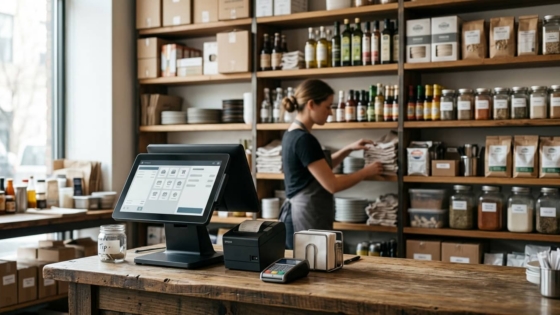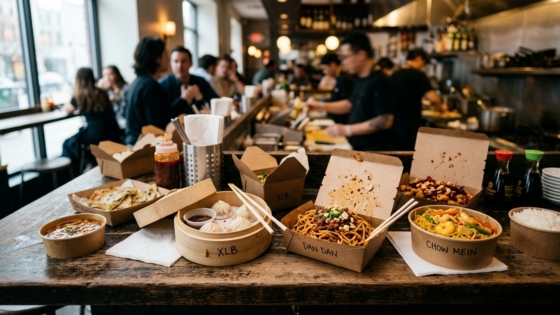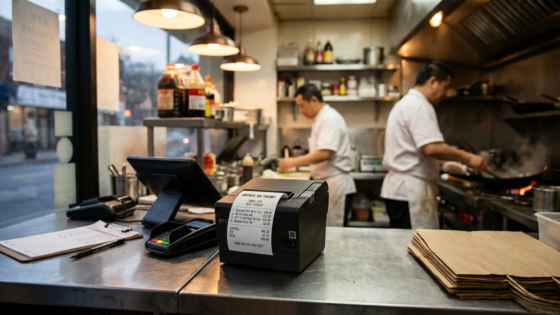
Not every restaurant has a full POS system — and that’s fine. Many Chinese takeout spots, family-run noodle shops, and small neighborhood restaurants have operated successfully for years by taking phone orders manually, writing tickets by hand, and running the kitchen on paper. If that sounds like your operation, there’s a path to AI phone ordering that doesn’t require a POS at all. Tunvo supports a standalone printer mode: when the AI takes a phone order, the order ticket prints directly in your kitchen, no POS software in between.
This guide explains exactly how it works, what hardware you need, and how to decide whether it’s the right setup for your restaurant.
Key Takeaways
- Tunvo works without a POS — phone orders can print directly to a kitchen receipt printer via a cloud printing connection.
- A compatible thermal receipt printer with network (LAN/WiFi) capability and cloud printing support is the only hardware required.
- The standalone printer setup is ideal for smaller operations as a low-barrier entry point; restaurants that grow into higher order volume may want to consider MenuSifu as a next step.
Why Some Restaurants Don’t Have a POS — and That’s Okay
In the New York Chinese restaurant community, a meaningful number of operators — especially those running high-volume takeout and delivery — rely on a simple workflow: phone rings, staff writes the order, ticket goes to the kitchen. No tablet, no touchscreen, no POS subscription. The system works because it’s familiar, the staff knows it, and introducing new technology carries risk.
The problem isn’t the workflow. The problem is what happens when the phone rings during a Friday rush and nobody can answer it. Restaurants typically lose $27,000 or more per year from unanswered phone calls — and that figure is based on an average order value of $25. For a New York Chinese restaurant with average phone orders in the $40–50 range, the annual loss is considerably higher.
Tunvo’s printer-only mode was built specifically for these operators. It lets you get the core benefit of AI phone ordering — every call answered, every order captured — without changing your existing payment flow, kitchen workflow, or requiring a new POS subscription.
How the Standalone Printer Mode Works
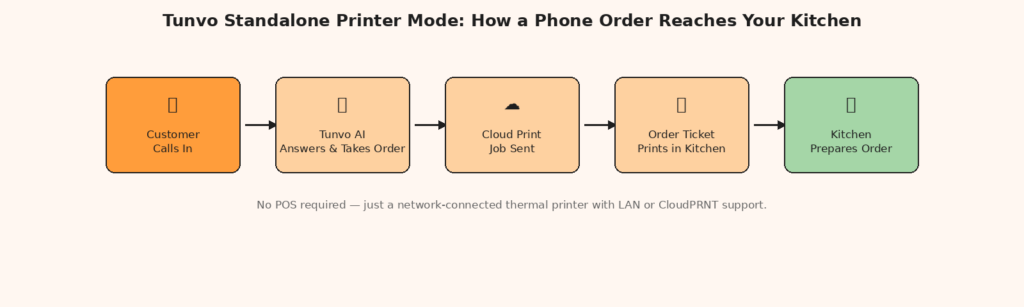
In standard POS mode, Tunvo connects to MenuSifu and submits orders as structured POS transactions. In standalone printer mode, Tunvo bypasses POS middleware entirely: when the AI completes an order with a caller, it formats the order as a receipt-ready text layout and sends it to your networked printer via a cloud printing protocol.
The order ticket that prints includes all the information your kitchen needs: the items ordered, quantities, modifier instructions (extra spicy, no onion, brown rice substitute), and a timestamp. The format is designed to be readable at a glance, similar to what kitchen staff would see from a handwritten ticket — but printed clearly, immediately, and without the risk of mishearing or transcription errors.
What Hardware You Need
The only hardware requirement is a thermal receipt printer that supports cloud printing or network (LAN/WiFi) connectivity. Not all printers qualify. A USB-only printer connected to a single computer won’t work — Tunvo needs to reach the printer remotely over the internet or your local network.
Recommended Printer Types
Star Micronics’ restaurant printer lineup is well-regarded for this kind of application. The models that work best for Tunvo’s standalone printer mode are printers that support one of the following connection types:
- LAN (Ethernet): The most reliable option. The printer connects to your router via a cable and receives a static IP address. Tunvo can reach it consistently without WiFi interference. Models like the Star TSP143IV and the mC-Print3 with LAN support both work well.
- CloudPRNT: Star Micronics’ cloud printing protocol allows a printer to receive jobs directly from internet-connected services without requiring a local computer intermediary. Star’s CloudPRNT-enabled printers are designed for exactly this kind of remote print scenario and are commonly used in online ordering setups with DoorDash and Uber Eats.
- WiFi (LAN-connected wireless): Works, but less stable than wired Ethernet for kitchen environments with high heat and RF interference from other devices.
USB-only printers and Bluetooth-only printers are not compatible with Tunvo’s standalone printer mode.
What You Don’t Need
You don’t need a tablet, a POS terminal, a separate computer, or any new software installation on your end. Once the printer is connected to your network and registered in your Tunvo account, print jobs arrive automatically when the AI completes an order.
Setting Up the Standalone Printer: Step by Step
Step 1: Choose and Install Your Printer
Select a compatible thermal printer (see recommendations above). Install the printer in your kitchen following the manufacturer’s instructions — this involves inserting the paper roll, connecting the power cable, and either plugging in an Ethernet cable or configuring the WiFi settings. For LAN-connected printers, assign the printer a static IP address in your router settings so its address doesn’t change when the router restarts. To print the printer’s current IP address, hold the feed button while powering on and releasing — two test receipts will print, with the IP address shown at the bottom of the second receipt.
Step 2: Register the Printer in Your Tunvo Account
Log into your Tunvo dashboard and navigate to the printer configuration section. Enter the printer’s IP address (for LAN mode) or follow the CloudPRNT pairing flow if your printer supports it. Tunvo will send a test print to confirm the connection. If the test ticket prints successfully, the printer is registered and ready.
Step 3: Configure Your Menu in Tunvo
In printer-only mode, your menu lives entirely within Tunvo rather than syncing from a POS. You’ll enter your menu items, modifier options, and pricing directly in the Tunvo dashboard. This takes longer than a MenuSifu sync (which can import your entire menu automatically), but it’s a one-time setup — typically 30–90 minutes depending on menu size. Keep your Tunvo menu updated when you change prices or add seasonal items.
Step 4: Configure Your Phone Number
Tunvo will provide a phone number to which your restaurant’s main number forwards. You can configure call forwarding on your existing phone line so that when a customer calls your normal number, Tunvo’s AI picks up. Customers dial the same number they’ve always used — they just now reach an AI instead of waiting for a staff member to pick up.
Step 5: Test Before Going Live
Place three to five test calls before activating for customers. Order a simple item, a complex item with modifiers, and an item you’d normally tell customers is unavailable. Confirm each ticket prints correctly and includes all modifier details. Only activate for live customer calls once you’re satisfied with the test results.
Limitations of the Standalone Printer Mode vs. MenuSifu Integration
Printer-only mode is a strong entry point, but it has limitations compared to the full MenuSifu integration. Understanding them helps you decide which setup is right for your current operation.
| Feature | Standalone Printer Mode | Tunvo + MenuSifu Integration |
|---|---|---|
| POS system required | ❌ No | ✅ MenuSifu required |
| Real-time item availability sync | ⚠️ Manual updates required | ✅ Automatic from MenuSifu |
| Menu sync with POS | ❌ Manual entry in Tunvo | ✅ Automatic from MenuSifu |
| Order history / reporting in POS | ❌ Not available in POS | ✅ Full history in MenuSifu |
| Phone order payment processing | ✅ Collect on pickup/delivery | ✅ Integrated payment options |
| Setup complexity | Low — printer + Tunvo only | Low to medium — MenuSifu + Tunvo sync |
The core value proposition is identical in both modes: the AI answers every call and takes every order. The difference is in how much operational visibility and automation you get around those orders after they’ve been placed.
When to Consider Moving to MenuSifu
The standalone printer mode is ideal if you currently have no POS and want to start capturing phone orders immediately with minimal disruption. But if any of the following are true, it’s worth considering whether adding MenuSifu’s full POS alongside Tunvo would serve your operation better:
- You’re handling more than 50 phone orders per day and want centralized order history and reporting
- You run daily specials that change often and want availability to sync automatically rather than manually updating Tunvo’s menu
- You want to accept credit card or mobile wallet payments at order placement rather than on delivery or pickup
- You’re planning to add kiosk, online ordering, or delivery platform integrations in the near future
Moving from printer-only mode to MenuSifu integration doesn’t require rebuilding your Tunvo setup from scratch — the AI voice agent configuration, your menu, and your phone number setup carry over. It’s an upgrade path, not a restart. View our pricing page for current plan details that cover both setup modes.
Frequently Asked Questions
What if my printer runs out of paper during a busy period?
Tunvo’s dashboard shows a log of every completed order and its print status. If a print job fails because the printer is out of paper or offline, the order is still logged in your Tunvo account and can be retrieved from the order history. Designate someone to check paper supply at the start of each shift — the same discipline you’d apply to any kitchen printer.
Can I use my existing receipt printer?
Possibly, if it supports LAN or CloudPRNT connectivity. USB-only printers won’t work. Check your printer’s model number against Star Micronics’ compatibility list or contact Tunvo support with your printer model and we’ll confirm. See our product page for a current list of tested compatible printers.
Does the AI know if an item is sold out in printer-only mode?
In printer-only mode, item availability is managed manually in your Tunvo menu dashboard. Unlike the MenuSifu integration where sold-out status syncs automatically, you’ll need to mark items as unavailable in Tunvo when you run out. This is a key limitation of the printer-only mode — it requires the same discipline as updating a physical menu board or telling phone staff what’s 86’d.
Can I start with a printer and upgrade to MenuSifu later?
Yes, and we recommend it as a path for operators who want to start simple. Your Tunvo AI configuration, menu, and call routing setup migrate to the MenuSifu integration. You can start your free trial in printer mode today, and our team will walk you through the upgrade path when you’re ready.
No POS, no problem. Tunvo gets you up and running in 30 minutes — even with just a printer. Start Your 15-Day Free Trial or Book a Demo to see it in action.